Important Note
In CallFire, the term "agent" is used to describe a person making outbound calls.Prior to log in, you must have received an email invitation from your account administrator (your agency owner) to create your agent (caller) sub‐account.
Log in Process
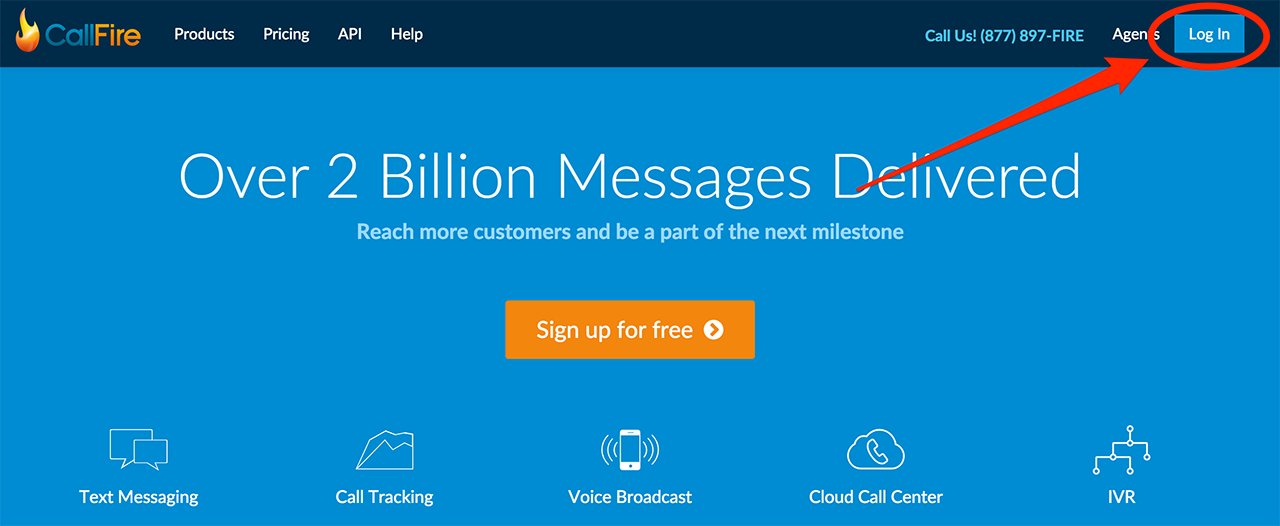
Go to www.callfire.com and click the blue "Log in" button in the upper right.
Enter your email address and the password that you created for your agent account. For Allstate accounts, the Allstate agency owner will be the account administrator, not the "agent."
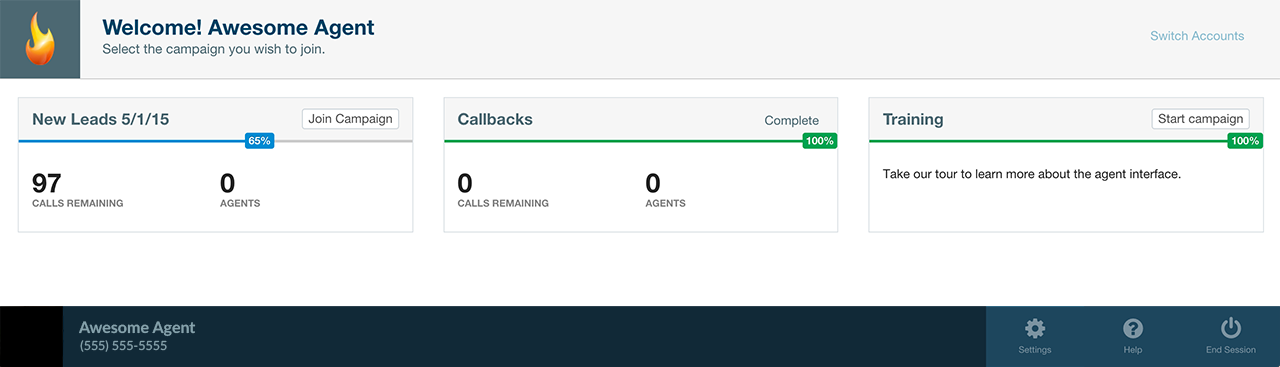
This is the agent login page. This interface is different from the agency owner's view. When you log in as an agent, your home page shows each of the campaigns you have been invited to make calls from.
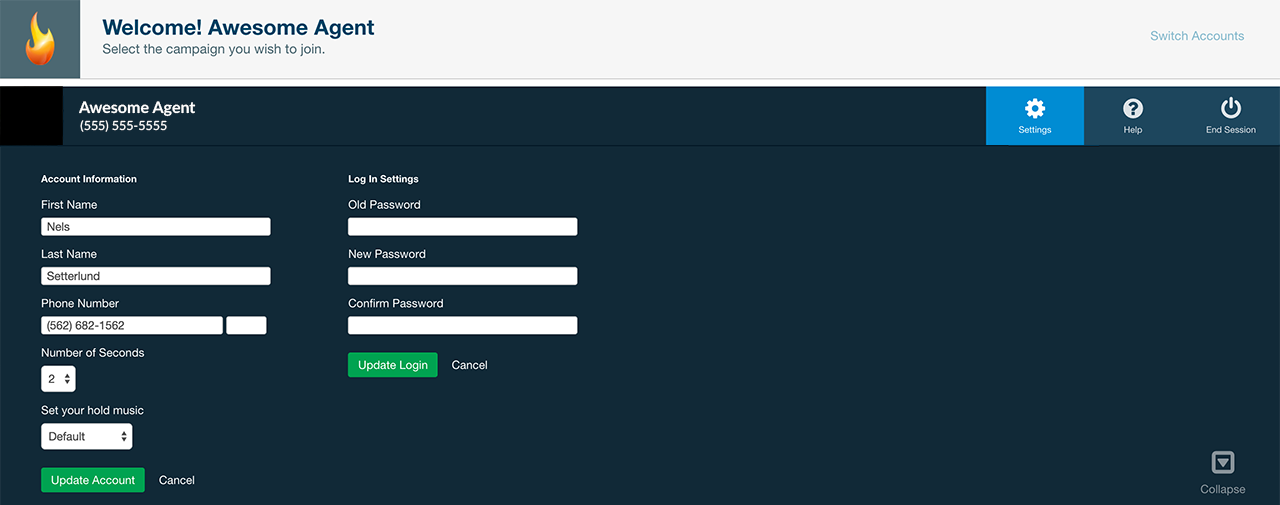
Notice the settings bar at the bottom of your screen. Click the "Settings" icon. Here you can edit your agent account details and phone number, or change your hold music, even during a dialing session.
To initiate a dialing session and begin making calls, click "Join Campaign" next to the campaign name. This is the point at which CallFire initiates billing charges for your dialing session.
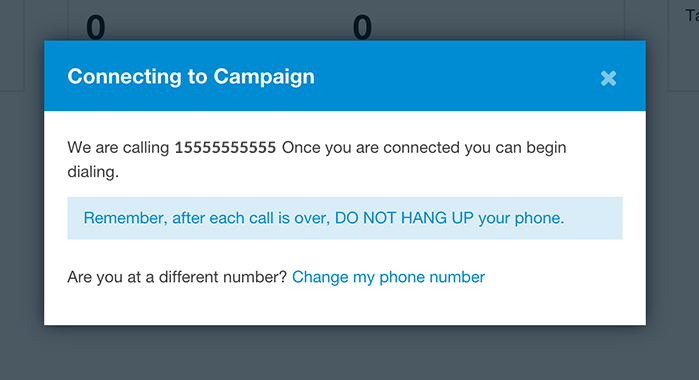
You will receive an incoming call from CallFire almost immediately. Answer the call and DO NOT HANG UP your phone. You need to maintain this connection in order to make calls.
Helpful Hint: A direct dialed extension is recommended. If your phone is forwarded during after hours, you will not be able to receive the callback. You can change your number in this window if needed.
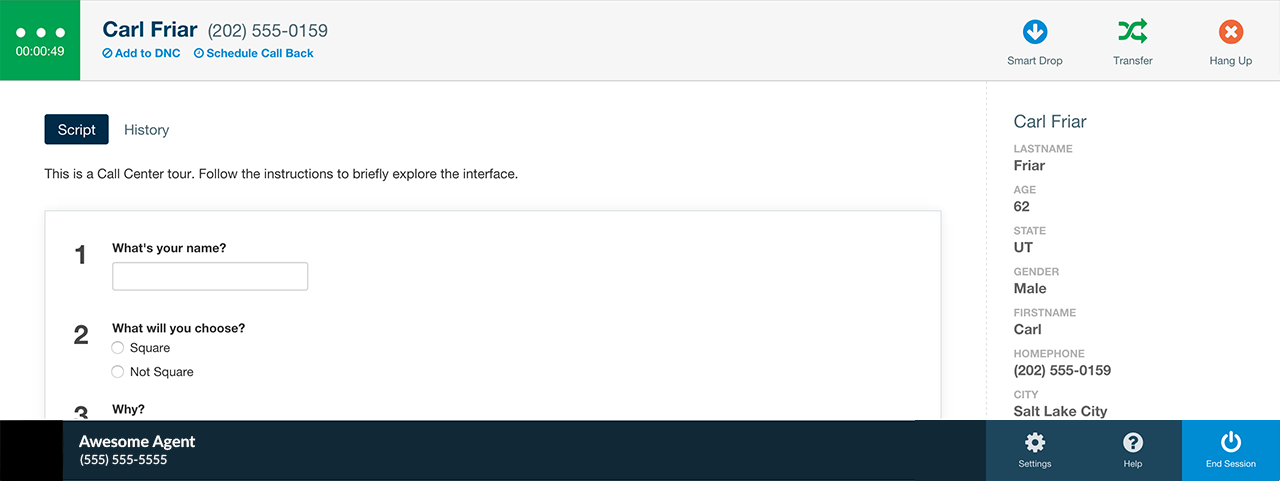
Once you've answered CallFire's agent callback, you will be taken to the dialer window. Here you can review your script and questions before making your first call. Keep in mind some elements of the interface may differ between campaigns according to the administrator's settings for that campaign.
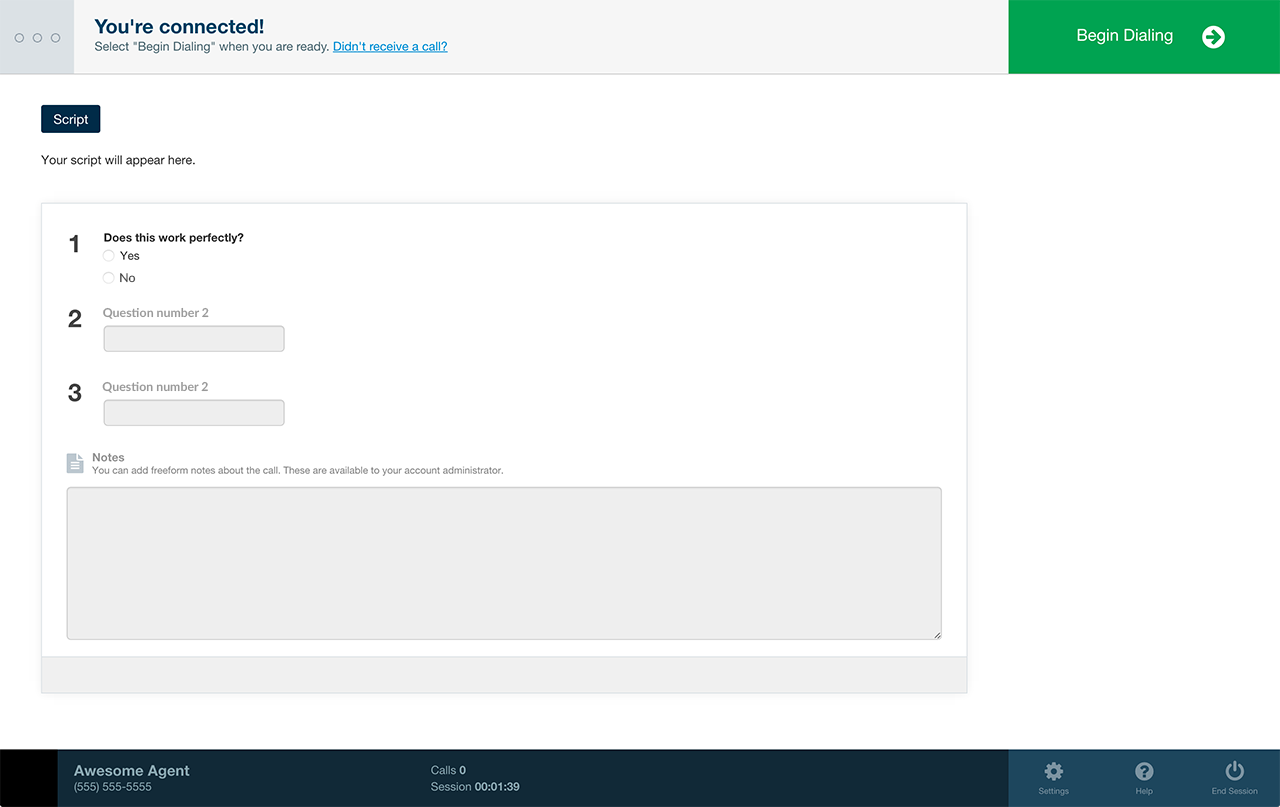
When you're ready start calls, press "Begin Dialing." Now the system will begin dialing numbers for you. CallFire detects and skips all disconnected, busy, and no answers, so you'll only be connected to answering machines or live answers.
Contact Display
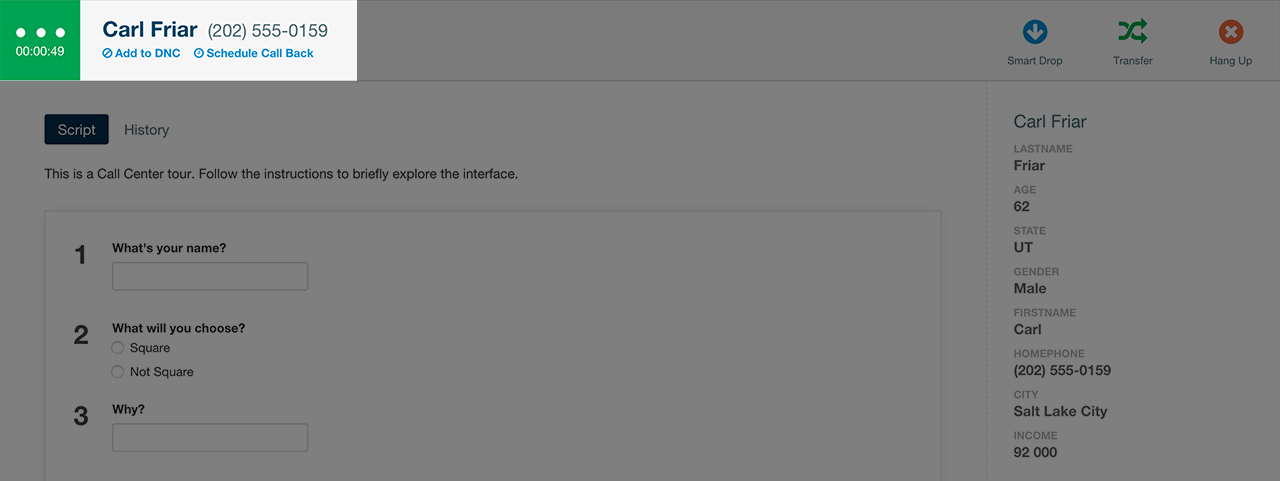
You'll listen to your selected hold music as the dialer attempts to connect you to the contact identified at the top left of your screen.
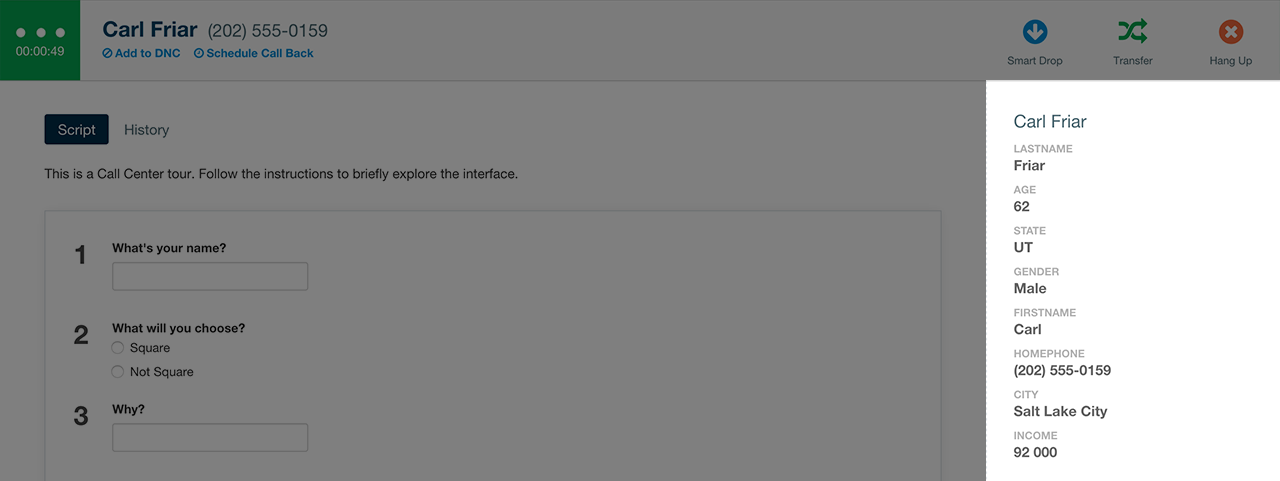
Displayed on the right side of your screen is the contact information that was uploaded with your original spreadsheet.
Dialer Features
Under the contact name, you will always see an option for Add to DNC (Do Not Call). If you add a number to your DNC list, it will be saved in your CallFire account and regularly reported back to Allstate.
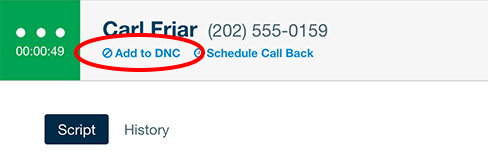
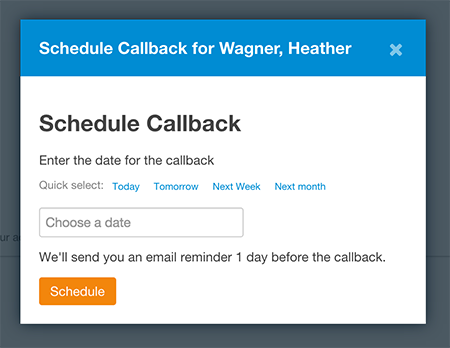
You also have the ability to Schedule Callback. Use this option to create an email reminder to call the contact back at some time in the future. The reminder will be sent to the registered agent email address, and the scheduled callback will appear on your agent home screen at log in.
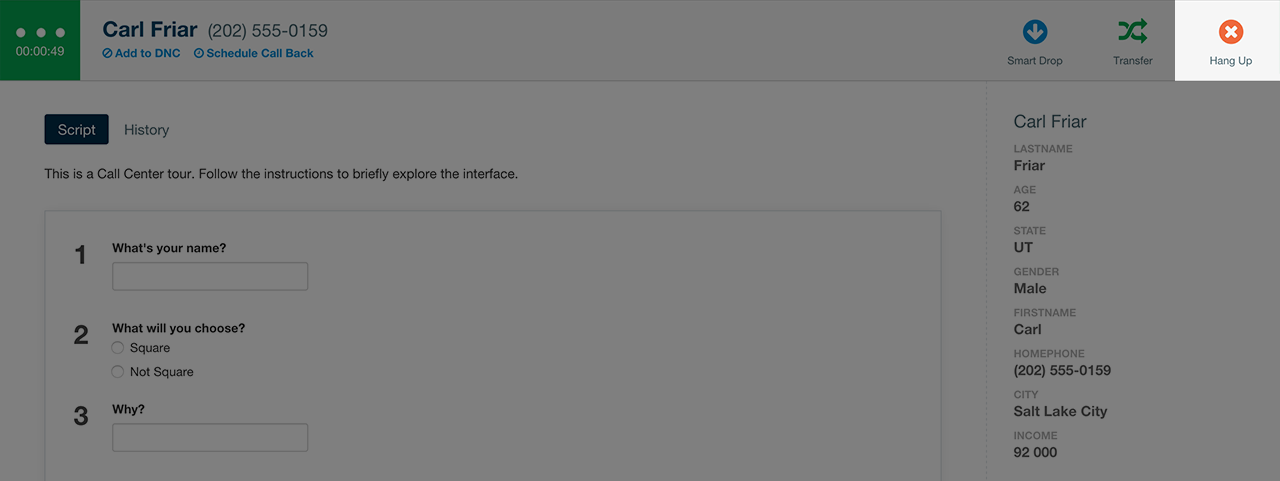
During your conversation, you can record any requested information from the call in the form provided. (The administrator may not have specified any information to collect). To end a call, DO NOT hang up your phone. Simply click "Hang Up" in the upper right corner of the dialer window.
If a call disposition question is provided, such as options for "Wrong Number," "Answering Machine," "Requested Quote," "Not Interested," etc., you will want to document this before you proceed to the next call.
When you are ready to continue dialing, click "Next Call" in the upper right corner of the dialer window.
Transfers
Helpful Hint: These options may not always be available. Your administrator may have defined the campaign settings to prevent blind or assisted transfers.
If the account owner has enabled transfers, you will see one or more options to transfer your contact to another number. You might use this to transfer an interested prospect to a licensed sales producer.
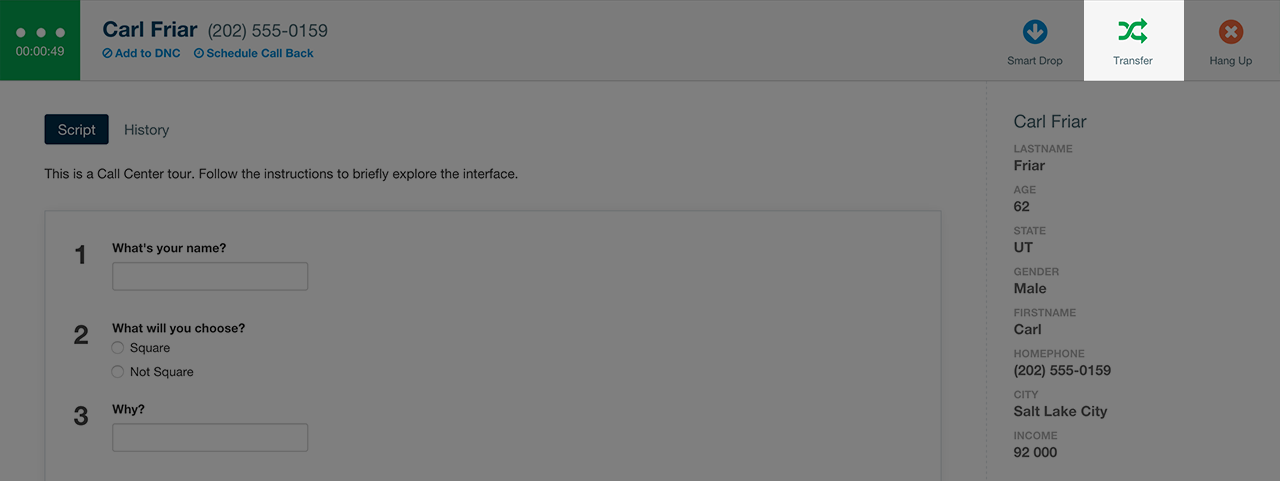
Once the call has been transferred, you can click Hang Up, and then resume dialing when ready. The contact that you transferred will remain on the transferred call while you continue to the next contact.
Transfer options will include either a free‐form transfer (allowing you to input any number), and/or a predefined phone number.
Both Free‐form and predefined transfer options will allow you to choose either a blind or assisted transfer.
- A blind transfer will take the active call and pass it directly to the number specified.
- An assisted transfer allows you to accompany the contact in the transfer and notify the recipient that you are sending a call to them.
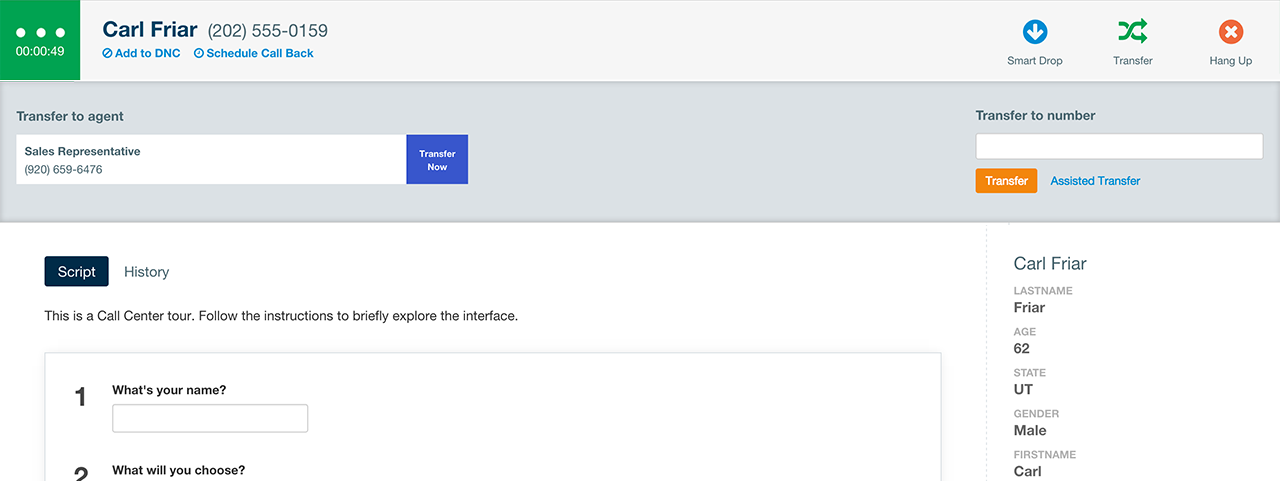
Free‐form transfer
Enter any 10‐digit phone number, and click Transfer or Assisted Transfer. You can then continue with the calling campaign.
Transfer to agent
Click the name of the agent that the administrator has predefined, and click either Assisted Transfer or Transfer Now.
Stop Dialing
If you need to pause briefly between contacts, you can use the Take a Break button. You might choose this option if someone stops by your desk to ask you a quick question, or for a quick trip to the coffee pot to refill your cup. Once you return, you will click the Resume button to continue dialing.
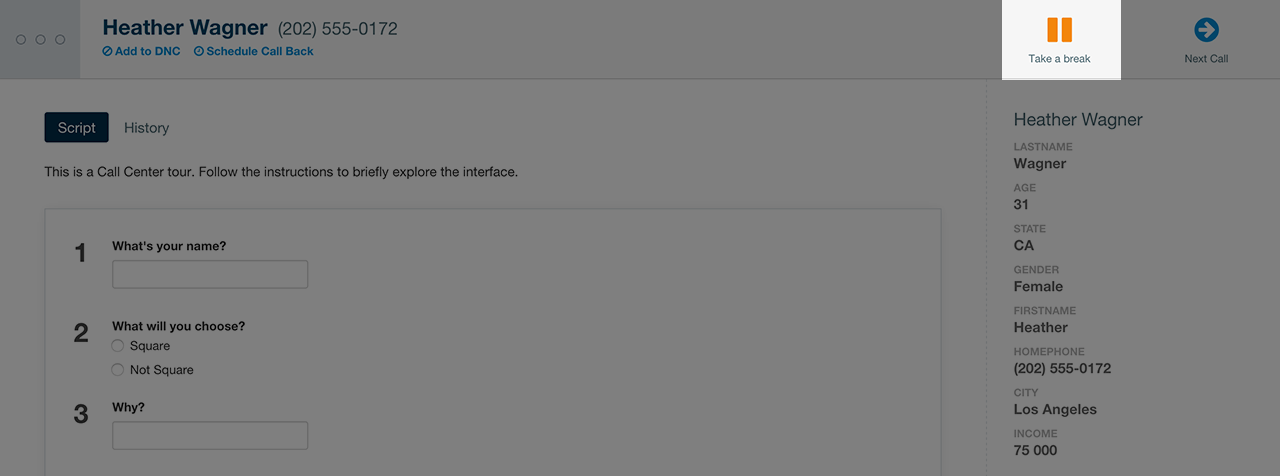
This feature DOES NOT end your billed dialing session and still counts as time logged into the dialer. Billing charges continue to accrue during a campaign that is paused using "Take a Break."
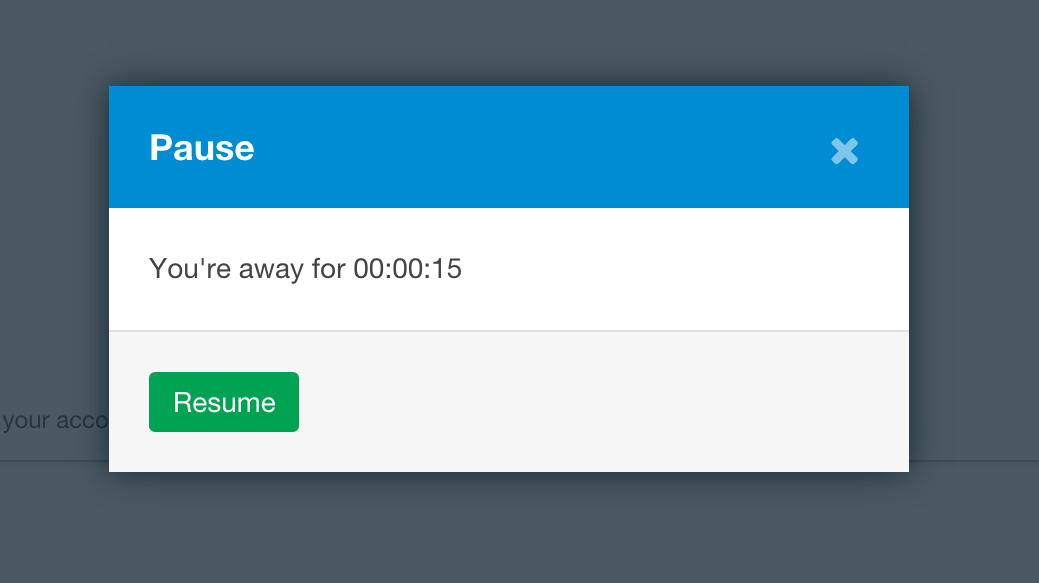
When a longer break is needed, such as for lunch or a meeting, click End Session at the bottom right of your dialer window to log out of the campaign. This will end the current dialing session as well as the billing session, so additional charges don't accrue during the break. To resume dialing, simple log back in to your account and select the campaign to pick up where you left off.